Tool walkthrough · Diana Molski
Give every renewal a place to land.
A subscription can look affordable each month and still bring a surprisingly large payment. The free Software Renewal Tracker keeps the amounts, dates and next decisions together.
Open the free tracker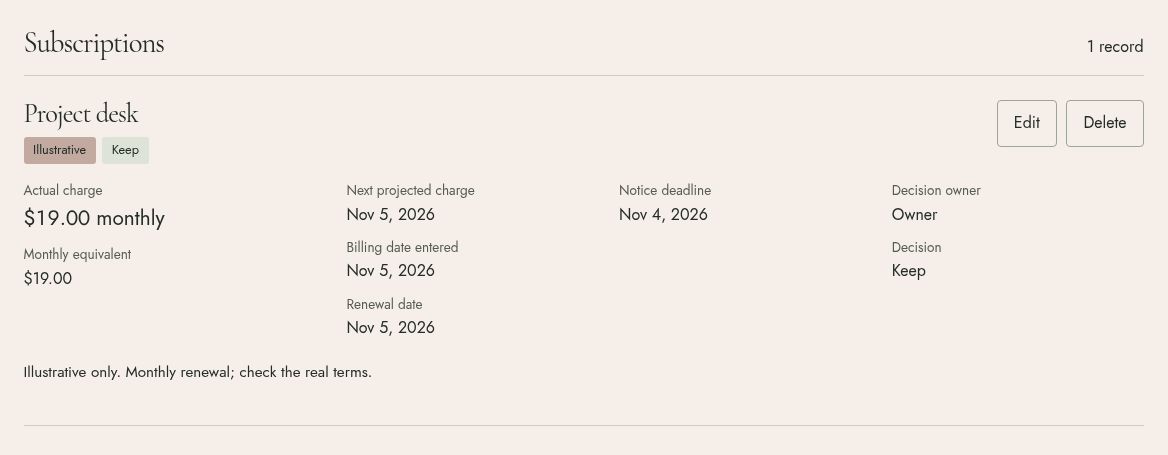
Start with the actual payment.
Choose Add a subscription. Enter the vendor, full charge in USD, and billing frequency. For a $240 annual plan, enter 240 and choose Annually.
That works out to $20 a month for comparison. The payment is still $240 when it falls due. The tracker shows a monthly equivalent alongside the charges expected in the month you select.
Record three dates separately.
- Billing date: a recent or next expected charge. This anchors the projected payment schedule.
- Renewal date: when the agreement renews.
- Cancellation or notice deadline: when you must act to prevent renewal.
Check the vendor’s terms. A cancellation deadline can fall before the payment date. Renewal and notice dates are not inferred or repeated automatically. Put a deadline’s exact time and time zone in the notes.
Give the decision an owner.
Add who will review the subscription and choose a status, such as Keep, Adjust plan or Compare alternatives. Use the notes for dependencies, missing information and the next action.
Choosing Cancel records your decision. It does not cancel the vendor’s service or remove projected charges. After confirming that billing has ended, update Billing state to Billing ended (confirmed).
Save a copy outside the browser.
Saving a subscription stores the diary in this browser on this device. Subscription records are not sent to Cloud & Capital. The diary does not sync across devices, and clearing browser data can remove it.
Use Export CSV for a backup you can import later. Calendar export creates dated, all-day events for the next 12 months from your selected month. It does not add automatic reminders; your calendar app controls alerts.