Cloud bills · A tool walkthrough
Your cloud bill grew. What changed?
A bigger bill tells you something changed. It doesn’t tell you where to start. Cloud Cost Guard breaks down your billing records and compares periods, so you can see which services deserve a closer look.
Start with your own billing export. Upload one period for a spending breakdown, or add an earlier period to see what changed.
Open Cloud Cost GuardStart with your own bill.
Use a billing CSV for the period you want to review. Guard currently reads supported FOCUS exports or its simple template. FOCUS is a shared format for billing records. Here’s the route for each provider.
- AWS
- Create a FOCUS export in Billing and Cost Management → Data Exports. Download its CSV files from S3 and extract them if compressed. AWS export instructions.
- Azure
- In Cost Management → Exports, choose Cost and usage details (FOCUS), where available for your billing account. Download the CSV files from Azure storage and extract them if compressed. Azure export instructions.
- Google Cloud
- Needs preparation in the current version. Map your billed-cost records to Guard’s simple template. Its reader doesn’t automatically convert the usual Google Cloud billing CSV layout. Google’s billing export options.
Open What can I upload? on Guard’s start screen for the template and format details. PDF invoices, screenshots, Excel files, archives, and Parquet files aren’t read directly.
- Under Your current bill, select all CSV parts from one export run.
- To compare, add a separate earlier period under An earlier bill. This is optional.
- Choose Review my bill. The first review prepares the analysis tools on your device, so give it a moment.
File requirements and limits
- Each period allows up to 20 CSV files, 10 MB combined, and 50,000 rows.
- The simple template needs Date, Service, Cost, and Currency. Preserve credits as negative amounts, and keep taxes and other charges you want included.
- The current reader accepts cost values with up to eight decimal places. Some exports use more precision and will be rejected. Keep the original amounts; don’t round records just to force an upload.
- FOCUS files need ChargePeriodStart, ChargePeriodEnd, ServiceName, BilledCost, and BillingCurrency. This is support for those columns, not validation of the full FOCUS specification. Empty service labels need to be filled in before upload.
- Use one currency and consistent account coverage and cost basis. The comparison must be earlier and must not overlap the current period.
- If identical rows are flagged, check whether they’re repeated exports or separate charges before choosing how to count them. Don’t combine repeated month-to-date snapshots.
What does the result tell you?
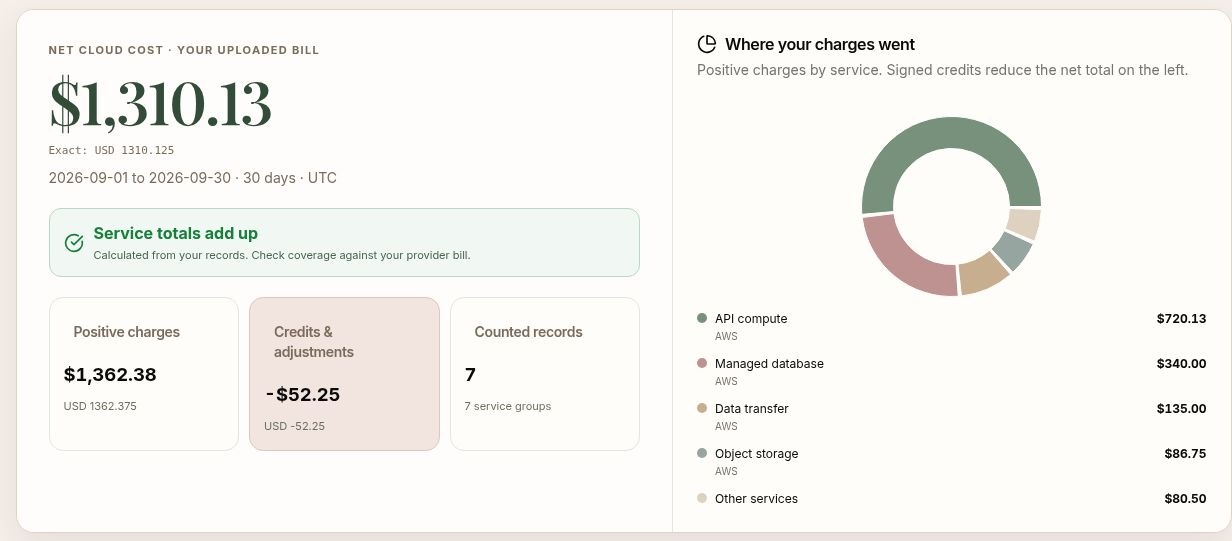
Net cloud cost shows the total from your supplied records, including signed credits. Services breaks it down by service. If you added an earlier period, Findings shows the biggest movements between the two uploads.
Check the dates, currency, and included accounts before using the result. Different-length periods compare total spending, not daily spending rates. A partial export gives you a partial picture.
The report covers the cloud records you supply. Separate software invoices, direct AI bills, or Kubernetes utilization need additional data; those sections explain what’s missing.
Start with the biggest change.
With a comparison, open Findings and look at Biggest movement and Largest changes. Start with the service behind the largest increase. With one period, use Services to see which charges deserve a closer look.
I’d ask the service owner what changed between the periods, then check usage, rates, and the underlying charges. Was there more demand? A different configuration? A price change? The service total gives us a place to investigate. It doesn’t answer those questions on its own.
Keep the next step small: one service, someone who can explain it, and the records needed to check the explanation. A higher bill might make sense for the work being done.
Ask a question. Keep the review.
Open Lumen and choose What changed? for a plain-language explanation. For uploaded bills, Lumen uses prepared answers from your report on your device, covering totals, services, credits, dates, and findings.
Choose Printable report to download an HTML copy you can open in your browser. The CSV exports keep the normalized records, and Evidence JSON keeps the fuller report data. Save what you need before leaving.
Want a quick preview before finding your export? The optional Try an example button on the start screen opens a sample dashboard.
Your uploaded records, results, and Lumen questions stay in this tab’s memory. Reloading, closing the tab, or clearing the data removes them. The separate sample dashboard’s AI chat has its own disclosure about sending messages to an AI service.