AI costs · A tool walkthrough
The cheaper AI plan might cost you more.
The monthly price is only part of what an AI tool costs. There’s also the time you spend checking the work, fixing it, and figuring out what you can actually use.
I built AI Cost Lens to help you look at those pieces together. Let’s walk through a made-up example, then try it with your own work. You don’t need to know anything about tokens to follow along.
Open the free toolLet’s compare two plans.
Imagine you use AI to draft 100 product descriptions a month. You check 20 drafts from each plan, using the same standard for what you’d be happy to publish. The numbers below are made up; enter them first to see how the tool works.
| What you enter | Plan A | Plan B |
|---|---|---|
| Monthly tool cost | $80 | $40 |
| Outputs checked | 20 | 20 |
| Usable without a big fix | 18 | 16 |
| Minutes spent reviewing or fixing | 60 | 120 |
For this example, enter 100 monthly tasks, value your time at $30 an hour, and set the minimum usable rate to 75%.
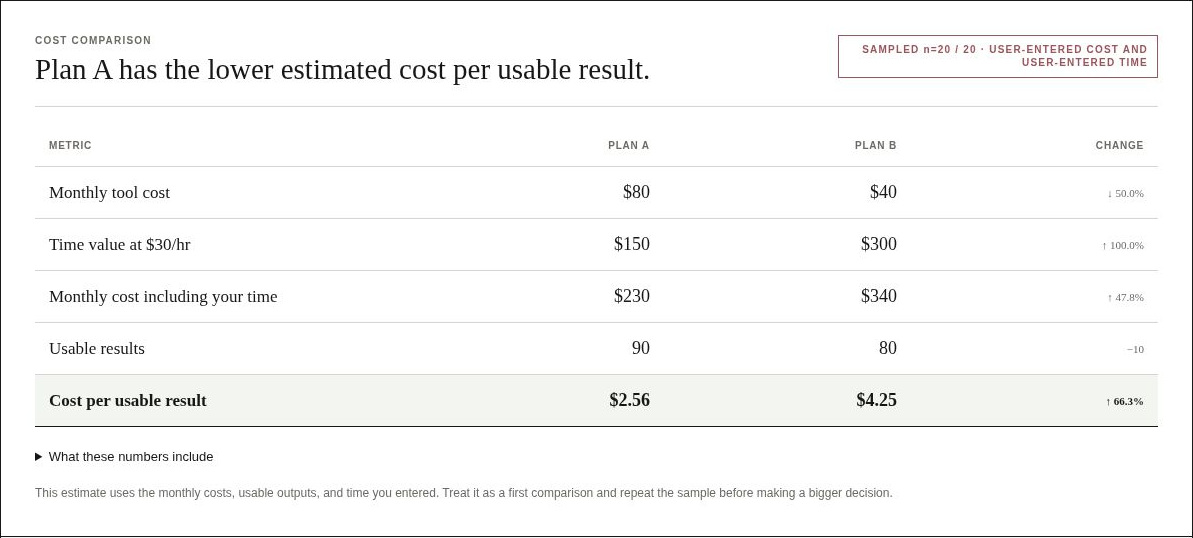
At those sample rates, Plan A gives you an estimated 90 usable descriptions a month. Plan B gives you 80. The review time projects to five hours for Plan A and ten for Plan B.
So the cheaper plan saves $40 in fees, but adds an estimated five hours of review work and gives you fewer usable drafts.
Putting a $30 hourly value on that time gives you $230 for Plan A and $340 for Plan B, including the tool charges. Divide by their estimated usable outputs and you get $2.56 per usable result for Plan A and $4.25 for Plan B. That’s the calculation behind the tradeoff.
Try it with your own work.
- Choose “Compare two options”. Give each tool or plan a name and enter its monthly cost in USD. Keep the comparison focused on the same kind of task.
- Enter your monthly task count. About how many of those tasks do you do? An estimate is fine; it will affect the projected totals.
- Check a sample from each option. Enter how many outputs you checked, how many were usable, and the total minutes you spent reviewing or fixing them. Use the same standard for both.
- Put a value on your time. Enter an hourly value, or zero if you want to leave time value out. Set the minimum percentage of usable outputs you would accept.
Here, “usable” means you checked the output and could accept it without a significant fix. Something you had to substantially rewrite stays out of that count, even if you eventually made it work.
Confirm that both tools are okay to use for the work only if you’ve actually checked that. Then choose Compare my options. You can still see the cost finding if approval hasn’t been confirmed.
What would I do with the answer?
Read Cost finding for the comparison, then Before switching for the quality and approval checks. With our example, I’d keep Plan A for product descriptions. The lower fee on Plan B wouldn’t be worth the extra checking and fixing for me.
If your cheaper option holds up on quality and total cost, try another batch before changing what you pay for. If the difference is tiny, ease of use and reliability might matter more. Keep the test focused on one kind of task; a small sample doesn’t tell you how a tool will perform on everything.
Save it before you go.
The tool runs in your browser and doesn’t automatically save your review between visits. Choose Download decision record (JSON) to keep a file you can reopen with Open saved review. You don’t need to know anything about JSON; it’s the file the tool uses to restore your comparison.
For something easier to read or share, Print finance memo opens your browser’s print dialog, where you can save a PDF.
Use Edit this comparison when you have another set of numbers to check. If you’re starting with a bill rather than two plans, the full tool guide covers the spending and upload paths.